www.xbdev.net
xbdev - software development
Thursday April 16, 2026
Home | Contact | Support | glTF File Format The JPG of 3D Formats ...


glTF File Format Tutorials

Unlocking the power ...


Textures, Images and Materials


The glTF file format has materials, textures and images. The mesh has an index into a material, the material has as index into a texture - and the texture has an index into an image. The image has the url or offset in the binary file for the image data.

Below shows a simple example of the gltf file contents.

{
  "meshes": [
    {
      "primitives": [
        {
          "attributes": { "POSITION": 0 },
          "material": 0 }
      ]
    }
  ],
  "materials": [
    {
      "pbrMetallicRoughness": {
        "baseColorTexture": { "index": 0 }
      }
    }
  ],
  "textures": [ { "source": 0 }
  ],
  "images": [ { "uri": "image.png" }
  ]
}


Looking at the Toyko Model


As an example, let's load and go through loading and viewing the textures/materials for the toyko model.


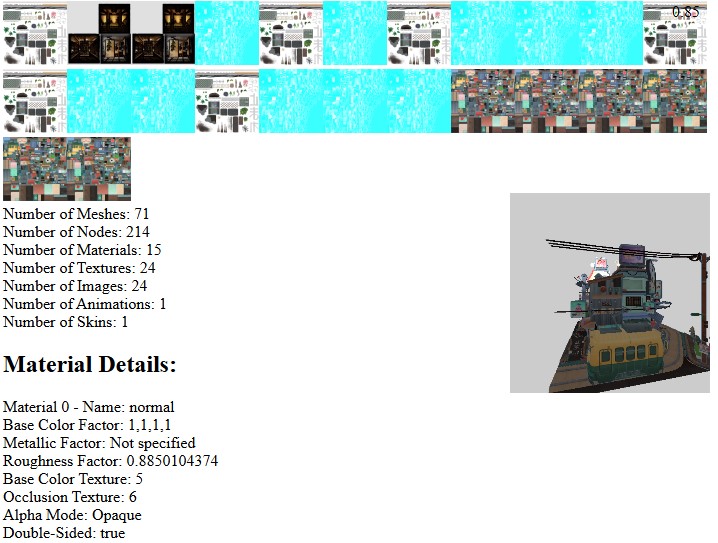
Output for the gltf tokyo model loaded and the image/texture images dumped - and related information meshes/hierarchy and a pre...
Output for the gltf tokyo model loaded and the image/texture images dumped - and related information meshes/hierarchy and a preview of the render.


The Tokyo model is a complex model with lots of materials and meshes so makes a good test case, below gives a dump of some of the elements within the file:

<?php
Material Details:
Material 0 - Name: normal
      Base Color Factor: 1,1,1,1
      Metallic Factor: Not specified
      Roughness Factor: 0.8850104374
      Base Color Texture: 5
      Occlusion Texture: 6
      Alpha Mode: Opaque
      Double-Sided: true
Material 1 - Name: metalmat
      Base Color Factor: 1,1,1,1
      Metallic Factor: 1
      Roughness Factor: 0.65
      Base Color Texture: 13
      Occlusion Texture: 12
      Alpha Mode: Opaque
      Double-Sided: true
Material 2 - Name: Plastic_Soft
      Base Color Factor: 1,1,1,1
      Metallic Factor: Not specified
      Roughness Factor: 0.65
      Base Color Texture: 15
      Occlusion Texture: 14
      Alpha Mode: Opaque
      Double-Sided: true
...
      
      
Texture Details:
Texture 0 - Source Index: 0, Sampler: Default
Texture 1 - Source Index: 1, Sampler: Default
Texture 2 - Source Index: 2, Sampler: Default
Texture 3 - Source Index: 3, Sampler: Default
Texture 4 - Source Index: 4, Sampler: Default
Texture 5 - Source Index: 5, Sampler: Default
Texture 6 - Source Index: 6, Sampler: Default
Texture 7 - Source Index: 7, Sampler: Default
Texture 8 - Source Index: 8, Sampler: Default
Texture 9 - Source Index: 9, Sampler: Default
Texture 10 - Source Index: 10, Sampler: Default
Texture 11 - Source Index: 11, Sampler: Default
Texture 12 - Source Index: 12, Sampler: Default
Texture 13 - Source Index: 13, Sampler: Default
Texture 14 - Source Index: 14, Sampler: Default
Texture 15 - Source Index: 15, Sampler: Default
Texture 16 - Source Index: 16, Sampler: Default
Texture 17 - Source Index: 17, Sampler: Default
Texture 18 - Source Index: 18, Sampler: Default
Texture 19 - Source Index: 19, Sampler: Default
Texture 20 - Source Index: 20, Sampler: Default
Texture 21 - Source Index: 21, Sampler: Default
Texture 22 - Source Index: 22, Sampler: Default
Texture 23 - Source Index: 23, Sampler: Default


Image Details:
Image 0 - URI: textures/alpha_baseColor.png, MimeType: Unknown
Image 1 - URI: textures/alpha_metallicRoughness.png, MimeType: Unknown
Image 2 - URI: textures/interiors_baseColor.jpg, MimeType: Unknown
Image 3 - URI: textures/interiors_emissive.jpg, MimeType: Unknown
Image 4 - URI: textures/Material_5511_baseColor.jpg, MimeType: Unknown
Image 5 - URI: textures/normal_baseColor.jpg, MimeType: Unknown
Image 6 - URI: textures/normal_metallicRoughness.png, MimeType: Unknown
Image 7 - URI: textures/glassmat_metallicRoughness.png, MimeType: Unknown
Image 8 - URI: textures/glassmat_baseColor.jpg, MimeType: Unknown
Image 9 - URI: textures/alpha_0_baseColor.png, MimeType: Unknown
Image 10 - URI: textures/alpha_glass_baseColor.png, MimeType: Unknown
Image 11 - URI: textures/alpha_glass_metallicRoughness.png, MimeType: Unknown
Image 12 - URI: textures/metalmat_metallicRoughness.png, MimeType: Unknown
Image 13 - URI: textures/metalmat_baseColor.jpg, MimeType: Unknown
Image 14 - URI: textures/Plastic_Soft_metallicRoughness.png, MimeType: Unknown
Image 15 - URI: textures/Plastic_Soft_baseColor.jpg, MimeType: Unknown
Image 16 - URI: textures/Material_5516_baseColor.png, MimeType: Unknown
Image 17 - URI: textures/Material_5516_metallicRoughness.png, MimeType: Unknown
Image 18 - URI: textures/paintmat_metallicRoughness.png, MimeType: Unknown
Image 19 - URI: textures/paintmat_baseColor.jpg, MimeType: Unknown
Image 20 - URI: textures/Material_5512_baseColor.png, MimeType: Unknown
Image 21 - URI: textures/Material_5512_metallicRoughness.png, MimeType: Unknown
Image 22 - URI: textures/glass_transp_metallicRoughness.png, MimeType: Unknown
Image 23 - URI: textures/Material_5518_baseColor.png, MimeType: Unknown

Mesh Details:
Mesh 0 - Name: Object224_normal_0
        Primitive 0:
                PrimitiveMode: 4
                Number of Vertices: 309
                Number of Indices: 429
                Material: normal
                Material Index: 0
Mesh 1 - Name: Object224_metalmat_0
        Primitive 0:
                PrimitiveMode: 4
                Number of Vertices: 87
                Number of Indices: 117
                Material: metalmat
                Material Index: 1
Mesh 2 - Name: Object688_normal_0
        Primitive 0:
                PrimitiveMode: 4
                Number of Vertices: 342
                Number of Indices: 288
                Material: normal
                Material Index: 0
Mesh 3 - Name: Object687_normal_0
        Primitive 0:
                PrimitiveMode: 4
                Number of Vertices: 342
                Number of Indices: 288
                Material: normal
                Material Index: 0
...


After all the data has been loaded in the gltfLoader (parsed everything) - there is a list of images (
parsedData.images
). We then add an extra function called
loadImages(..)
which loads all of the images.

The
loadImages(..)
handles both binary and ascii version of the file - so if the data is ascii the images are either inlined using base64 or are links to external images (usually in the same path at the gltf file). While the binary versions (in the glb file) have the images within the file - so we use the binary data and the offset to extract the images.

The images are loaded and decoded and stored in the
parsedData
structure so they can be used later.

// Utility function to load images
async loadImages(parsedData, gltfPath) {
    if (!parsedData.images) return;

    const imagePromises = parsedData.images.map(async (image, index) => {
      
          // console.log('image:', image, 'index:', index );
        
        if (image.bufferView !== undefined) {
            // Handle embedded images in GLB
            const bufferView = parsedData.bufferViews[image.bufferView];
            const buffer = parsedData.buffers[bufferView.buffer];
            const byteOffset = bufferView.byteOffset || 0;
            const byteLength = bufferView.byteLength;

            // Check if buffer.data is correctly populated
              console.assert(buffer.data, 'data is not populated correctly');
         
            const imageData = new Uint8Array(buffer.data, byteOffset, byteLength);      
            const blob = new Blob([imageData], { type: image.mimeType });
              
              const img = new Image();
              img.src = URL.createObjectURL(blob);
            await img.decode();
            
              parsedData.images[index].imageObject = img;
          
              // debug show the image (thumb) - check it's decoded correctly
            document.body.appendChild( img );
            img.style.width = '64px';                
        }
        else
        {
              // Fetch can be used for both the inline and external file - 
            // just got to fix up the url so it's correct
              let imageUri = image.uri;
            console.log('imageUri:', imageUri );
            if ( gltfPath && !imageUri.startsWith('data:') && !imageUri.startsWith('http')) {
                imageUri = gltfPath + image.uri;
                
            }
            const imageResponse = await fetch(imageUri);
            const imageBlob = await imageResponse.blob();
          
            const img = new Image();
            img.src = URL.createObjectURL(imageBlob);
              try {
            await img.decode();
            }
              catch ( error )
            {
                  
                  console.log('either cannot load image or it cannot be decoded:', image.uri );
                  console.log('cannot decode image..', image.uri);
            }
            parsedData.images[index].imageObject = img;

            // debug show the image as small thumb for debugging
            document.body.appendChild( img );
            img.style.width = '64px'; 
        }
    });

    await Promise.all(imagePromises); // Wait for all images to be loaded
}


Loading the Images into the GPU


Once we have the data ready we can setup or renderer to use it. The WebGPU shader lets use create an Array of Textures so we can pass all the textures through to the shader and access them using an index.

This is relatively straightforward as shown below - the only aspect to be careful about - if you use an array of textures - all your textures have to be the same size! You also have to make sure that your images are the correct size - otherwise, when you map your textures onto the mesh you'll end up with the textures not looking correct.


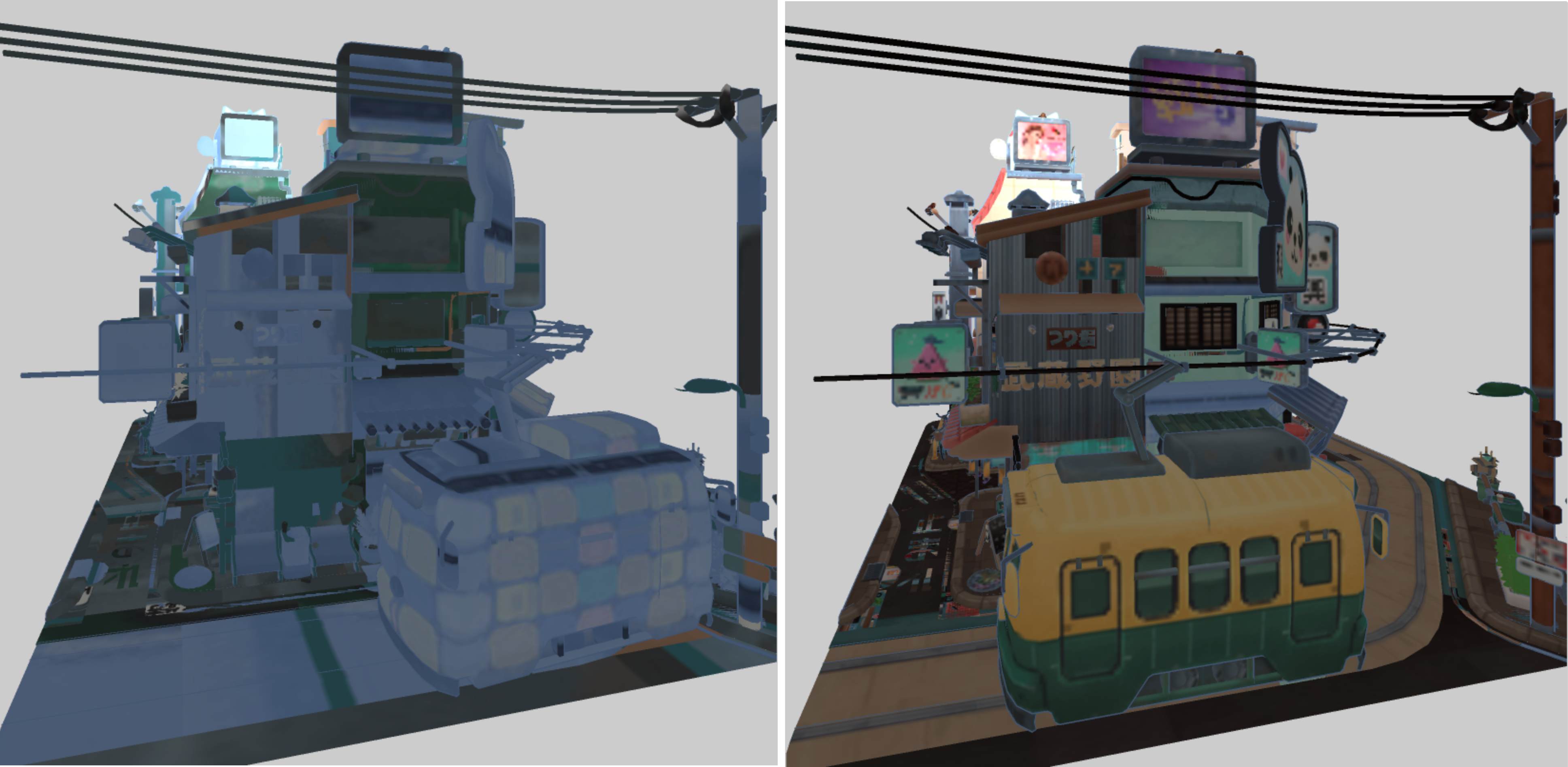
You can see an example of incorrect image scaling - on the left is if we do not
You can see an example of incorrect image scaling - on the left is if we do not 'resizeImage(..)' to the same size as the image array size - while the image on the right uses the corrected image size for the array.


<?php
    // Helper function for resizing the images
    const resizeImage = async (originalImage, newWidth, newHeight) => {
        // Create a canvas element
        const canvas = document.createElement('canvas');
        canvas.width = newWidth;
        canvas.height = newHeight;

        // Get the 2D drawing context
        const ctx = canvas.getContext('2d');

        // Draw the original image onto the canvas with new dimensions
        ctx.drawImage(originalImage, 0, 0, newWidth, newHeight);

        // Create a new Image object
        const resizedImage = new Image();

        // Set the source of the new Image to the data URL of the canvas
        resizedImage.src = canvas.toDataURL();
          await resizedImage.decode();

        return resizedImage;
    }

    // create the texture of ararys which we pass to the shader through the bind group
    let layerCount    = parsedData.images ? parsedData.images.length : 1; 
    const textureWidth  = 512;
    const textureHeight = 512;
      const textureArray = device.createTexture({
            size: [textureWidth, textureHeight, layerCount],
            format: 'rgba8unorm',
            usage: GPUTextureUsage.TEXTURE_BINDING | GPUTextureUsage.COPY_DST | GPUTextureUsage.RENDER_ATTACHMENT,
    });
  
  
    // process the images and copy them across to the texture array (if we have images)
      if ( parsedData.images )
    {
          layerCount = parsedData.images;
        for (let i=0; i<parsedData.images.length; i++)
        {
            let img  = parsedData.images[i].imageObject;
              let img2 = await resizeImage( img, 512, 512 );

            const imageBitmap = await createImageBitmap(img2);
            const bitmapWidth  = imageBitmap.width;
            const bitmapHeight = imageBitmap.height;
            console.assert( bitmapWidth==textureWidth && bitmapHeight==textureHeight );
          
            device.queue.copyExternalImageToTexture(
                { source: imageBitmap },
                { texture: textureArray, origin: { x: 0, y: 0, z: i } },
                { width: textureWidth, height: textureHeight, depthOrArrayLayers: 1 }
            );
        }
    }
  
    // Create sampler - used for sampling the texture in the fragment shader
    const sampler = device.createSampler({ magFilter: 'linear', minFilter: 'linear' });


Managing Materials, Textures and Images


Once all the data is parsed and ready - you can create a material buffer on the GPU which can store all the material data. Each mesh has a material index - so you can lookup the correct material in the fragment shader as needed.

For the example below, we define a maximum nunber of materials and create an uniform array - for testing the materials are just an array of vec4s - but this can be extended as needed for more information to be passed to the shader.

The material index is stored in the w component of the vertex - as by default each vertex is a vec3 - but we use vec4s and store the material index in the last component. Pass this value through to the fragment shader so we can lookup the material in the array of uniform materials.

<?php
        struct Materials {
              data      : array< vec4<u32>, 100 > // maxMaterials
        };
        @group(0) @binding(4) var<uniform> materials : Materials;
        
        @group(0) @binding(2) var textureArray: texture_2d_array<f32>;
        @group(0) @binding(3) var textureSampler: sampler;
        
        @fragment
        fn fmain(@location(0) vnormal  :vec3<f32>,
                 @location(1) vposition:vec3<f32>,
                 @location(2) vcolor   :vec3<f32>,
                 @location(3) vcoords  :vec2<f32>,
                 @interpolate(flat )@location(4)vmid     :u32,
                 ) -> @location(0) vec4<f32> {

            let matId:u32 = vmid;
            let texId:u32 = materials.data[ matId ].y;
            
            var texColor      = textureSample(textureArray, textureSampler, vcoords, texId);
            ...


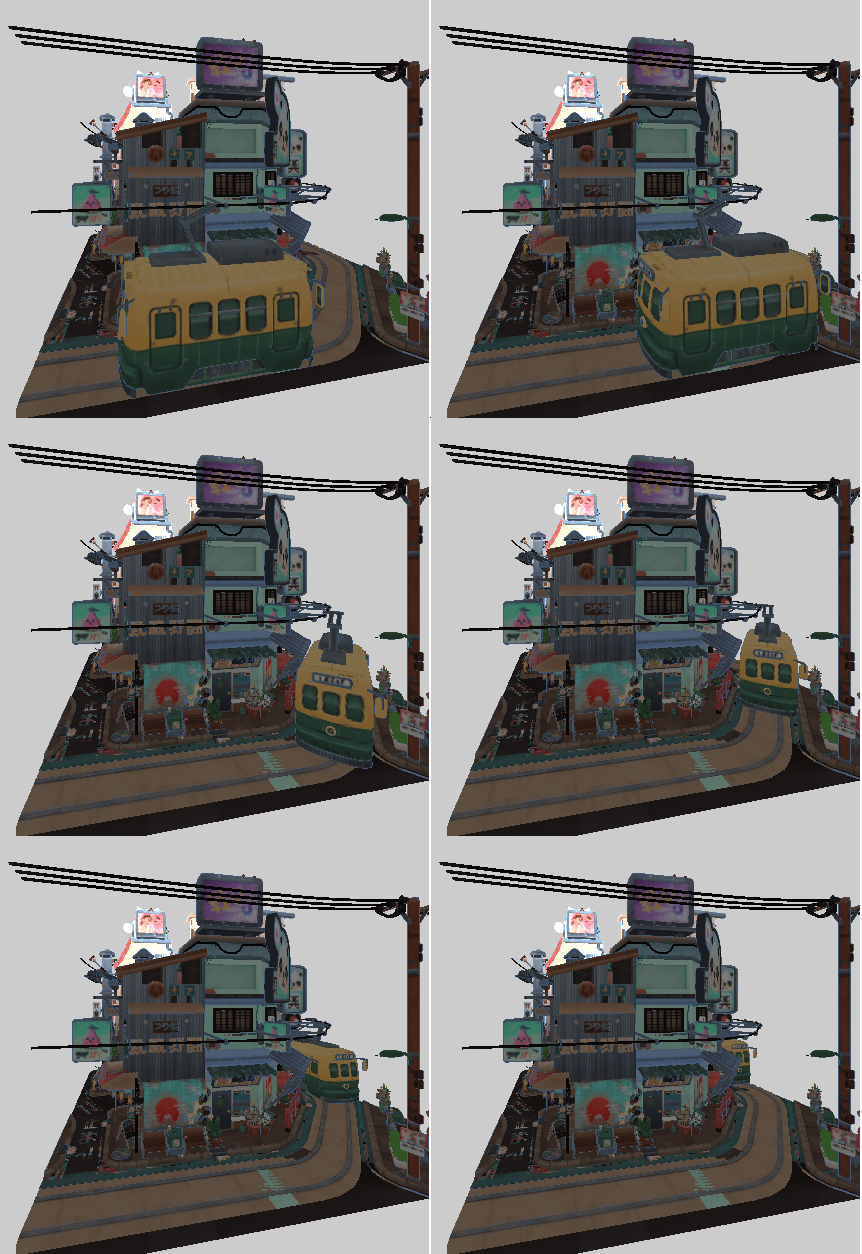
The Tokyo scene with basic decal shading is shown below (including the animation). Padding more material information to the shader you can add further lighting calculations to increase the realism of the scene.


An output with the animation for the Tokyo scene.


Things to Try


• Add in additional materials (pass them to the fragment shader and implement the calculation)
• Accesss additional texture data (e.g., specular and normals)
• Modify the camera so you can fly around the Tokyo scene
• Put the camera in the front of the tram car and update it so it moves with the tram (feels like you're inside at the front of the tram car)
• Add a skymap (cubemap) so you can add atmospheric feeling (sun/sky moving/reflections)
• Add in some shadows (simple shadow map)


Resources and Links


• Tokyo Model Dumped with Textures/Materials (LINK)


Ray-Tracing with WebGPU kenwright WebGPU Development Cookbook - coding recipes for all your webgpu needs! WebGPU by Example: Fractals, Image Effects, Ray-Tracing, Procedural Geometry, 2D/3D, Particles, Simulations WebGPU Games WGSL 2d 3d interactive web-based fun learning WebGPU Compute WebGPU API - Owners WebGPU & WGSL Essentials: A Hands-On Approach to Interactive Graphics, Games, 2D Interfaces, 3D Meshes, Animation, Security and Production Kenwright graphics and animations using the webgpu api 12 week course kenwright learn webgpu api kenwright programming compute and graphics applications with html5 and webgpu api kenwright real-time 3d graphics with webgpu kenwright webgpu for dummies kenwright webgpu api develompent a quick start guide kenwright webgpu by example 2022 kenwright webgpu gems kenwright webgpu interactive compute and graphics visualization cookbook kenwright wgsl webgpu shading language cookbook kenwright WebGPU Shader Language Development: Vertex, Fragment, Compute Shaders for Programmers Kenwright wgsl webgpugems shading language cookbook kenwright WGSL Fundamentals book kenwright WebGPU Data Visualization Cookbook kenwright Special Effects Programming with WebGPU kenwright WebGPU Programming Guide: Interactive Graphics and Compute Programming with WebGPU & WGSL kenwright


Advert (Support Website)

 
 Visitor:
Copyright (c) 2002-2026 xbdev.net - All rights reserved.
Designated articles, tutorials and software are the property of their respective owners.