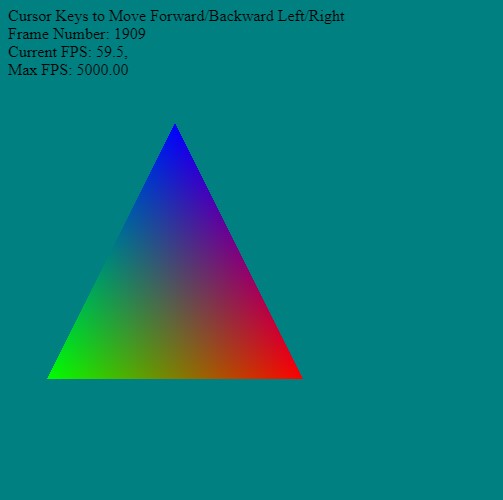
The cameras `eye`, `at` and `direction` are stored - we then check for key events using the `onkeydown`. Then we can update the camera dynamically on the fly. The camera displacement step is set as a fixed size.
// -----------------------------------------------------------------------------
let counter = 0.0;
let frameNumber = 0;
let fpsTime = performance.now();
let cameraAt = [ 0, 0, 0 ];
let cameraDir = [ 0, 0, 1 ];
let cameraEye = [ cameraAt[0]-cameraDir[0],
cameraAt[1]-cameraDir[1],
cameraAt[2]-cameraDir[2] ];
function frame()
{
var startTime = performance.now();
// setup a transform for triangle
const t = { p:{x:0,y:0,z:0}, r:{x:0,y:0.0,z:0.0}, s:{x:1.0, y:1.0,z:1.0} };
let modelMatrix = buildMatrix(t.p, t.r, t.s);
// update the local matrix for each triangle draw differently
device.queue.writeBuffer(mvpUniformBuffer, 0, modelMatrix);
// Rotate the camera around the origin in the circle
mat4.lookAt(viewMatrix, cameraEye, cameraAt, [0, 1, 0]);
device.queue.writeBuffer(mvpUniformBuffer, 64, viewMatrix);
// simple counter
counter += 0.001;
const k = 0;
const renderPassDescription = {
colorAttachments: [{
view: context.getCurrentTexture().createView(),
loadOp: (k==0 ? "clear":"load"),
clearValue: [0, 0.5, 0.5, 1], // clear screen to color
storeOp: 'store'
}],
depthStencilAttachment: {
view: depthTexture.createView(),
depthLoadOp: (k==0 ? "clear":"load"),
depthClearValue: 1,
depthStoreOp: "store",
}
};
renderPassDescription.colorAttachments[0].view = context.getCurrentTexture().createView();
const commandEncoder = device.createCommandEncoder();
const renderPass = commandEncoder.beginRenderPass(renderPassDescription);
renderPass.setBindGroup(0, uniformBindGroup);
renderPass.setPipeline(pipeline);
renderPass.setVertexBuffer(0, positionBuffer);
renderPass.setVertexBuffer(1, colorBuffer);
renderPass.setIndexBuffer(indexBuffer, 'uint16');
renderPass.drawIndexed(3,1);
renderPass.end();
device.queue.submit([commandEncoder.finish()]);
// animate - keep updating
requestAnimationFrame(frame);
// --------- Timing Information -------------------------
frameNumber++;
var endTime = performance.now();
var updateFPS = 1000.0 / ( endTime - fpsTime);
var maxFPS = 1000.0 / ( endTime - startTime);
fpsTime = endTime;
divInfo.innerHTML = `
Cursor Keys to Move Forward/Backward Left/Right<br>
Frame Number: ${frameNumber}<br>
Current FPS: ${updateFPS.toFixed(1)},<br>
Max FPS: ${maxFPS.toFixed(2)}`;
}
onkeydown = function( e )
{
let dt = 0.2;
switch (event.key)
{
case "ArrowLeft":
{
cameraAt[0] += dt;
}
break;
case "ArrowRight":
{
cameraAt[0] -= dt;
}
break;
case "ArrowUp":
{
cameraAt[2] += dt;
}
break;
case "ArrowDown":
{
cameraAt[2] -= dt;
}
break;
}// end switch(..)
cameraEye = [ cameraAt[0]-cameraDir[0],
cameraAt[1]-cameraDir[1],
cameraAt[2]-cameraDir[2] ];
}// end onkeydown(..)
frame();
console.log('ready...');