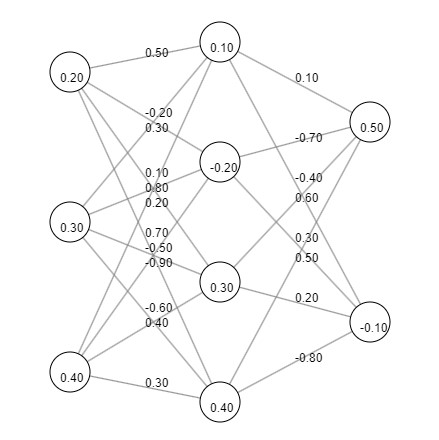
Very simple to draw the neural nework data visually on screen - all the inputs/ouputs/nodes/weight and more - you can even update this data on the fly to show how the neural network is evolving (during training).
For low-dimensional neural networks you can use nodes and connections - for high-density cases (e.g., thousands or millions of nodes - you'll probably display the neural network data as a color image - colors indicating number ranges).
Neural network visualiztion (connections, layers, weights and biases).
If you're going to visualize the network data in real-time (during training) - avoid doing it every frame - instead only do it every so often - so it only updates every few seconds. You can use a counter and a modulus to triger the update in code (such as, update every 100 iterations in code:
count%100==
)
Visualizing Network Connections
Complete Code
/*
Neural Network Visualization

Inputs on the left and the outputs on the right - in between are all the hidden nodes/connections.
For fully connected neural networks.
*/

// Write a function that does all the work! A single function - just pass the neural network configuration data and it'll create it (or update it if one already exists).


function drawNeuralNetwork(canvasName, config) {
let canvas = document.getElementById(canvasName);
if ( canvas==undefined )
{
    canvas = document.createElement('canvas');
    document.body.appendChild( canvas );
    canvas.width = canvas.height = 600;
}
const context = canvas.getContext('2d');
const canvasWidth  = context.canvas.width;
const canvasHeight = context.canvas.height;

const { layers, weights, biases } = config;

const layerCount = layers.length;
const neuronRadius = 20;
const layerSpacing = canvasWidth / (layerCount + 1);
const maxNeurons = Math.max(...layers);

// Function to get position of a neuron
function getNeuronPosition(layerIndex, neuronIndex) {
  const x = layerSpacing * (layerIndex + 1);
  const ySpacing = canvasHeight / (layers[layerIndex] + 1);
  const y = ySpacing * (neuronIndex + 1);
  return { x, y };
}

// Draw connections, weights and biases
for (let i = 0; i < layerCount - 1; i++) {
  for (let j = 0; j < layers[i]; j++) {
  for (let k = 0; k < layers[i + 1]; k++) {
    const from = getNeuronPosition(i, j);
    const to = getNeuronPosition(i + 1, k);
    context.beginPath();
    context.moveTo(from.x, from.y);
    context.lineTo(to.x, to.y);
    context.strokeStyle = 'gray';
    context.stroke();

    // Draw weight value
    const weight = weights[i][j][k];
    const midX = (from.x + to.x) / 2;
    const midY = (from.y + to.y) / 2;
    context.fillStyle = 'black';
    context.font = '12px Arial';
    context.fillText(weight.toFixed(2), midX, midY);
  }
  }
}

// Draw neurons and biases
for (let i = 0; i < layerCount; i++) {
  for (let j = 0; j < layers[i]; j++) {
  const { x, y } = getNeuronPosition(i, j);

  // Draw neuron
  context.beginPath();
  context.arc(x, y, neuronRadius, 0, 2 * Math.PI);
  context.fillStyle = 'white';
  context.fill();
  context.strokeStyle = 'black';
  context.stroke();

  // Draw bias
  const bias = biases[i][j];
  context.fillStyle = 'black';
  context.font = '12px Arial';
  context.fillText(bias.toFixed(2), x - neuronRadius / 2, y + neuronRadius / 2);
  }
}
}// drawNeuralNetwork


// Example configuration
const config = {
layers: [3, 4, 2], // Number of neurons per layer (input layer, hidden layers, output layer)
weights: [
  // Weights between layer 0 and layer 1
  [
    [0.5, -0.2, 0.1, 0.7], // Weights from neuron 0 in layer 0 to neurons in layer 1
    [0.3, 0.8, -0.5, -0.6],
    [0.2, -0.9, 0.4, 0.3]
  ],
  // Weights between layer 1 and layer 2
  [
    [0.1, -0.4], // Weights from neuron 0 in layer 1 to neurons in layer 2
    [-0.7, 0.3],
    [0.6, 0.2],
    [0.5, -0.8]
  ]
],
biases: [
  // Biases for layer 0
  [0.2, 0.3, 0.4],
  // Biases for layer 1
  [0.1, -0.2, 0.3, 0.4],
  // Biases for layer 2
  [0.5, -0.1]
]
};

drawNeuralNetwork('neuralNetworkCanvas', config);
Plotting the Input vs Output
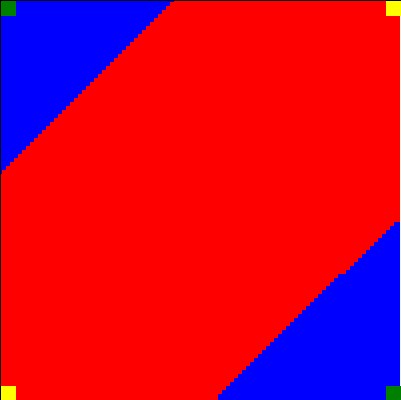
We can visualize the neural network's sensitivity to the input and output. Plotting the outputs in a grid of input values, we can visually inspect the decision boundary created by the neural network.
Red and blue colors represent the network's prediction for each point in the input space, making it easy to see how well the network distinguishes between the two classes (output
0
and
1
).
The green dots indicate the original training points, allowing us to assess the accuracy of the neural network's learning. This visualization helps to understand the network's performance and the effectiveness of its training in solving a non-linear classification problem.
Output when plotting the input vs the output for trained neural network (XOR).
For the example, we'll use of the open source JavaScript libraries called 'Synaptic'.
• Make the connecting lines reflect the weight magnitude (thicker or thiner lines)
• Draw the activation function type on the visual (e.g., signmoid or relu)
• Interaction - cursor hovers over a node or link it changes color/emphasised (show extra information)
• Color information for magnitude or numerical ranges (0-1 maps to red-green-blue range)
• Incorporating shapes to provide context
• Draw a line from the input to the output - emphasis the strongest influence using the largest weight from each layer to decide the path
• Add tables for the data that can be sorted high/low (with color cells) - 0 to 1 (mapping to blue to red)