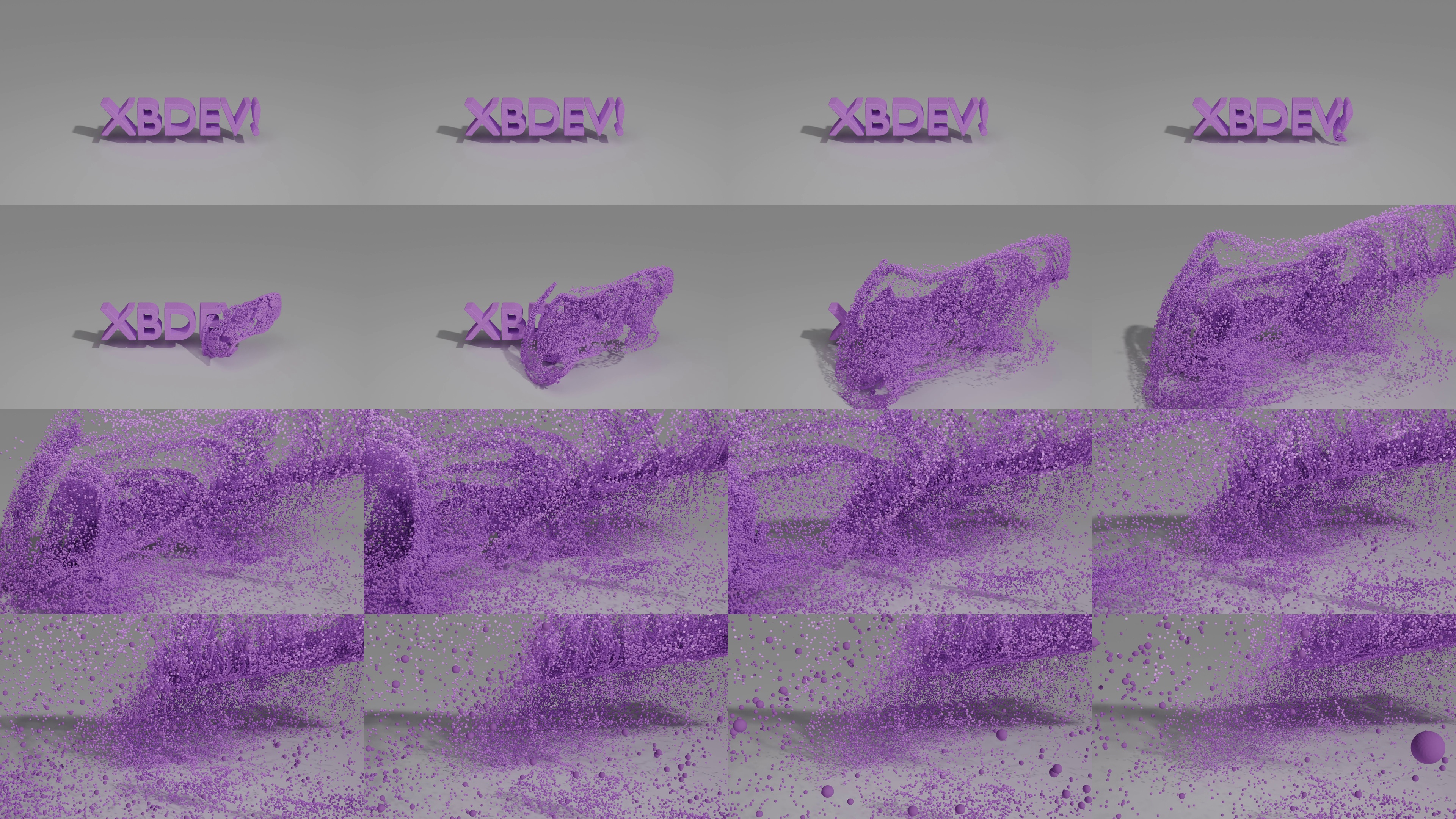
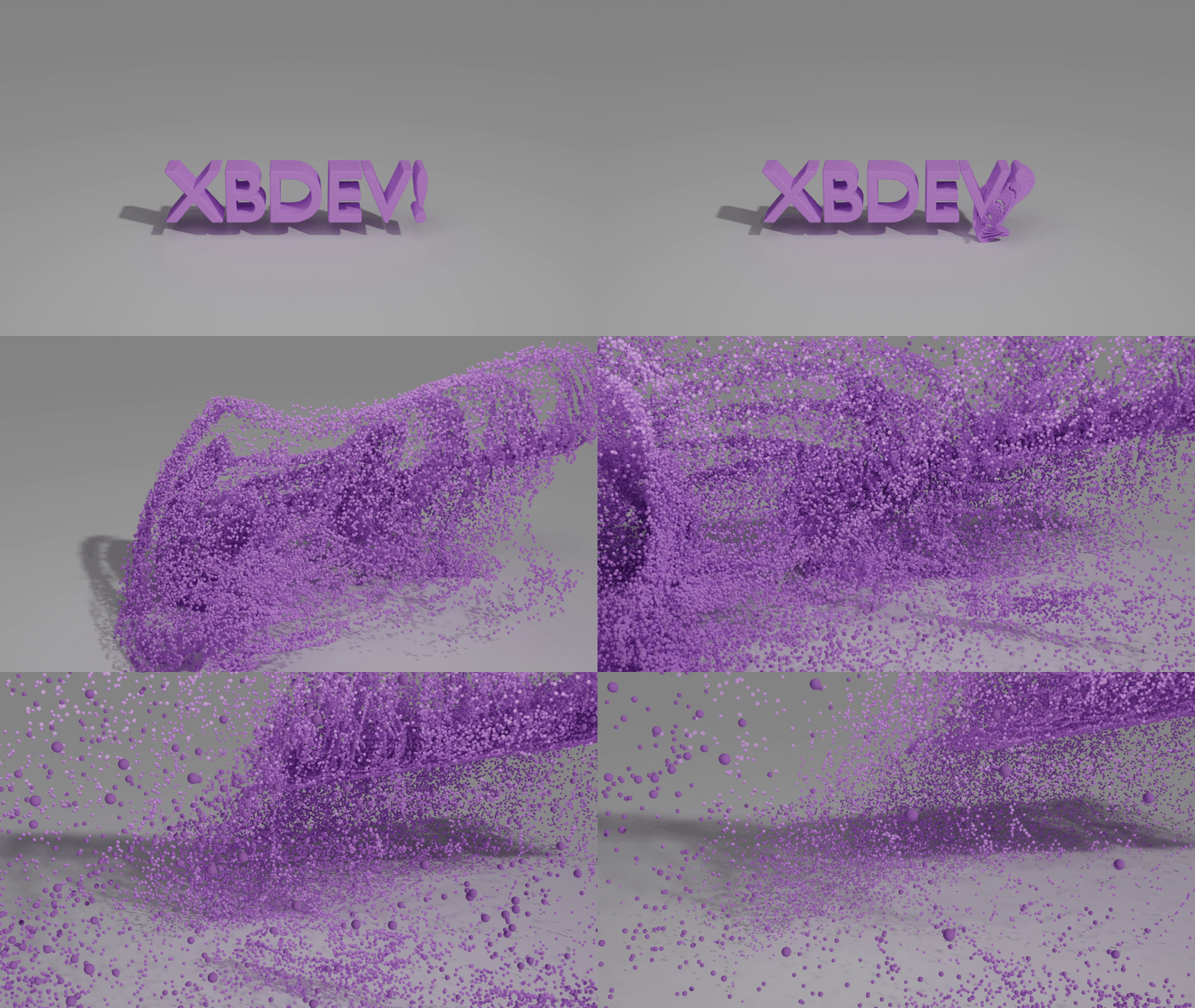
Throw together some 3d volumetric text - but combine it with a particle emitter - we null out any forces - so we can create a dense particle structure for the text. We then disable the text emitter (only see the particles) - adding in a turbulence force which slowly moves across the scene - we can create a nice little dissolve effect.
You can see an example of the dissolve effect using '100,000' particles - you can ramp it up for more detail - but be warned - those particles are memory greedy! 500,000 uses about 4gb of memory when baked.
In fact, if you've seen film 'The Day the Earth Stood Still' (2008 version with Keanu Reeves) - the effect sort of reminds me of that? Have you seen it? When the swarm of nano-flies dissolves everything?
Fun moment the Robot from space (The Day the Earth Stood Still) - dissolves into lots of little flies. You could do something simlar with our effect- throw in a few more force effects, add in some shiny sparks and a nice surrounds and we've got it!
<?php
import bpy
import math

# --- 1. Clear the scene ---
bpy.ops.object.select_all(action='SELECT')
bpy.ops.object.delete(use_global=False)

# --- 2. Add and configure 3D Text ---
bpy.ops.object.text_add(location=(0, 0, 0))
text_obj = bpy.context.object
text_obj.data.body = "XBDEV!"
text_obj.data.align_x = 'CENTER'  # Options: 'LEFT', 'CENTER', 'RIGHT', 'JUSTIFY', 'FLUSH'
text_obj.data.align_y = 'BOTTOM'  # Options: 'TOP', 'CENTER', 'BOTTOM'
text_obj.rotation_euler = (math.pi / 2, 0, 0)  # Face upward
text_obj.data.extrude = 0.2

bpy.ops.object.convert(target='MESH')  # Convert to mesh for particles


# --- 3. Create the particle instance object (small sphere) ---
bpy.ops.mesh.primitive_uv_sphere_add(radius=0.3, location=(22, 2, 2))
sphere = bpy.context.object
sphere.name = "ParticleSphere"

# Assign a basic material to the sphere
mat = bpy.data.materials.new(name="ParticleMat")
mat.diffuse_color = (0.8, 0.2, 1.0, 1.0)  # RGBA
sphere.data.materials.append(mat)


# --- 4. Add particle system to the text ---
bpy.context.view_layer.objects.active = text_obj
bpy.ops.object.particle_system_add()
psys = text_obj.particle_systems[0]
psettings = psys.settings
psettings.count = 100000
psettings.frame_start = 0
psettings.frame_end = 0
psettings.lifetime = 250
psettings.render_type = 'OBJECT'
psettings.instance_object = sphere
psettings.physics_type = 'NEWTON'
psettings.use_rotations = True
psettings.rotation_mode = 'NOR'
psettings.normal_factor = 0.0
psettings.effector_weights.gravity = 0
psettings.distribution = 'RAND'
#psettings.emit_from = 'VOLUME'
psettings.frame_start = 0
psettings.frame_end = 0

# Only draw the particles - not the mesh text
text_obj.show_instancer_for_render = False


# --- 5. Add camera ---
bpy.ops.object.camera_add(location=(5, -5, 2.5), rotation=(math.radians(75), 0, math.radians(45)))
camera = bpy.context.object
bpy.context.scene.camera = camera
# Set camera location slightly in front and above the text
camera.location = (0, -10, 4.5)  # Behind on Y axis, raised on Z axis
# Rotate the camera to look down slightly
camera.rotation_euler = (math.radians(70), 0, 0)  # Tilt downward


# --- 6. Add an area light ---
# Add the area light
bpy.ops.object.light_add(type='AREA', location=(0, -3, 5))
light = bpy.context.object
light.data.energy = 100
light.data.size = 5
light.rotation_euler = (math.radians(60), 0, 0)  # Aim downward toward (0, 0, 0)

sun = bpy.data.lights.new(name="SunLight", type='SUN')
sun_obj = bpy.data.objects.new(name="Sun", object_data=sun)
bpy.context.collection.objects.link(sun_obj)
sun_obj.location = (9, -9, 8)
sun_obj.rotation_euler = (math.radians(50), 0, math.radians(45))
sun.energy = 1.0
sun.angle = math.radians(2)


# --- 7. Add turbulence force field and animate it ---
bpy.ops.object.effector_add(type='TURBULENCE', location=(5, 0, 0))
turb = bpy.context.object
turb.field.strength = 10.0
turb.field.size = 1.0
turb.field.use_max_distance = True
turb.field.distance_max = 1


# Animate turbulence movement over 200 frames
turb.location.x = 3
turb.keyframe_insert(data_path="location", frame=1)
turb.location.x = -3
turb.keyframe_insert(data_path="location", frame=200)

# Optional: set timeline
bpy.context.scene.frame_start = 1
bpy.context.scene.frame_end = 250

bpy.context.scene.render.engine = 'CYCLES'
bpy.context.scene.cycles.preview_samples = 8
bpy.context.scene.cycles.samples = 64
bpy.context.scene.cycles.use_denoising = True


# Add a large plane beneath the text
bpy.ops.mesh.primitive_plane_add(size=100, location=(0, 0, -0.1))  # Slightly beneath the text

# Reference the plane object
plane = bpy.context.object
plane.name = "GroundPlane"

# Create and assign a white material
white_mat = bpy.data.materials.new(name="WhiteMaterial")
white_mat.diffuse_color = (1.0, 1.0, 1.0, 1.0)  # Pure white
white_mat.use_nodes = True  # Use shader nodes

# Optionally tweak principled BSDF for more control
bsdf = white_mat.node_tree.nodes.get("Principled BSDF")
if bsdf:
    bsdf.inputs["Base Color"].default_value = (1, 1, 1, 1)
    bsdf.inputs["Roughness"].default_value = 0.5

# Apply the material to the plane
plane.data.materials.append(white_mat)
The generated output (converted to a gif) - with 20000 particles at the start.
I'd always recommend 'baking' the particles before rendering them - so it isn't so slow - however, the 'bake' can cost you a lot of memory - hundreds of thousands of particles requires a few gigs of memory. These days, I guess a few gig is nothing?
Things to Try
This is just the beginning....
• Ramp up the number of particles (also make them smaller)
• Try using the 'velocity' as the 'color' instead of a constant color
• Use 2 types of particles - inner particle mesh and an outer particle mesh (only see outer particles at the start)
• Add in more forces (different turbulances, vortexes, etc)
• Try other shapes instead of text - a robot? a car? a chicken?
• Load in a mesh with materials and colors - see if you can set the default particle color to use the color of the mesh surface it's touching
• Adding lots of forces to 'control' the path of the particles - so they are squashed into a box? or into a pipe?
Visitor:
Copyright (c) 2002-2026 xbdev.net - All rights reserved.
Designated articles, tutorials and software are the property of their respective owners.